Migrate Workflows
All workflows can be represented as YAML code. This allows users to export a workflow and import it into another project they have access to.
The YAML export captures the workflow structure: steps, triggers, paths, edge conditions, adaptor versions, and job code. It does not carry credentials, run history, work orders, dataclips, or webhook URLs.
Steps to export a workflow
To export a workflow from the source Project:
- Click on the workflow you want to export.
- On the top-right corner is a vertical slider button. Click on that.
- A
View your workflow as YAML codelink will appear on the pop-up. Click on it.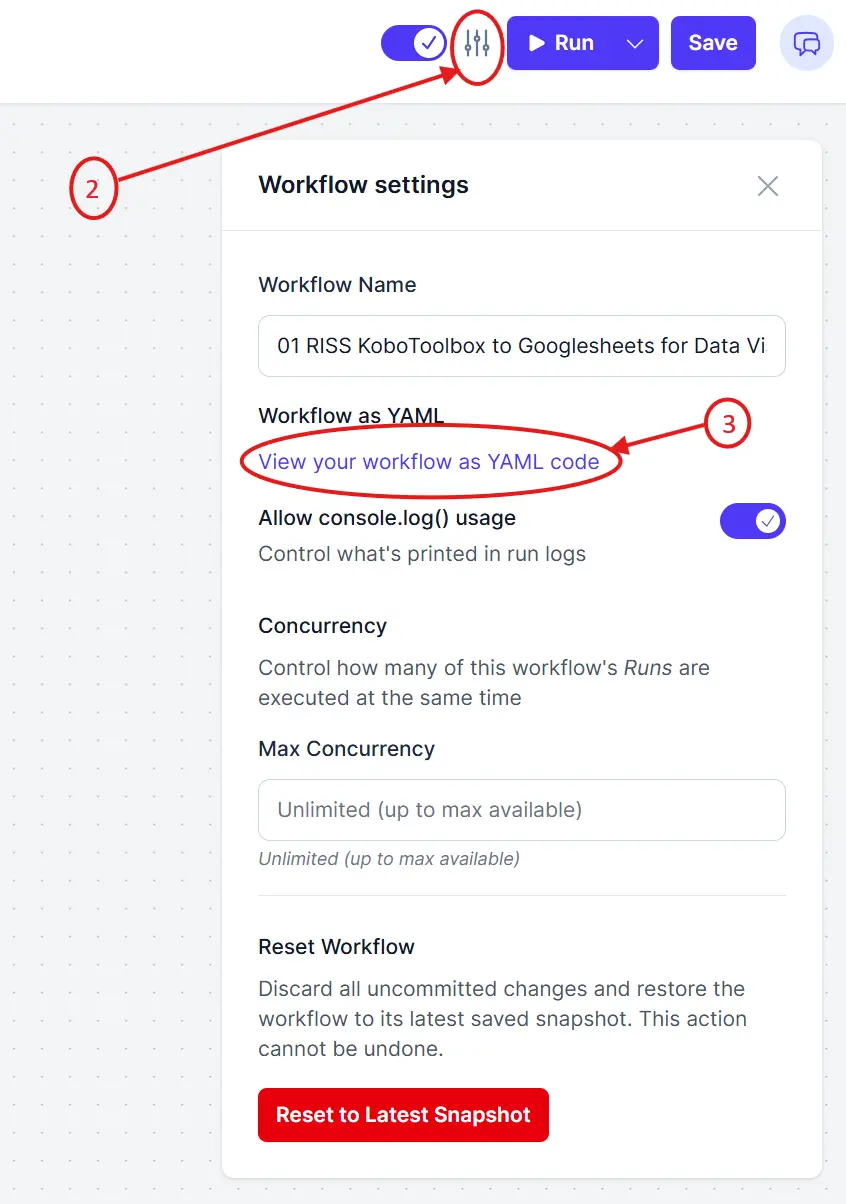
- Click on the
Copy Codebutton to copy the YAML to your clipboard, or theDownloadbutton to save the YAML as a file.
Steps to import a workflow
To import a workflow into the target Project:
- Go to the workflows page in the target project.
- Click the
Create new workflowbutton. - Look for a link at the bottom that says
import a YAML file manuallyand click on that.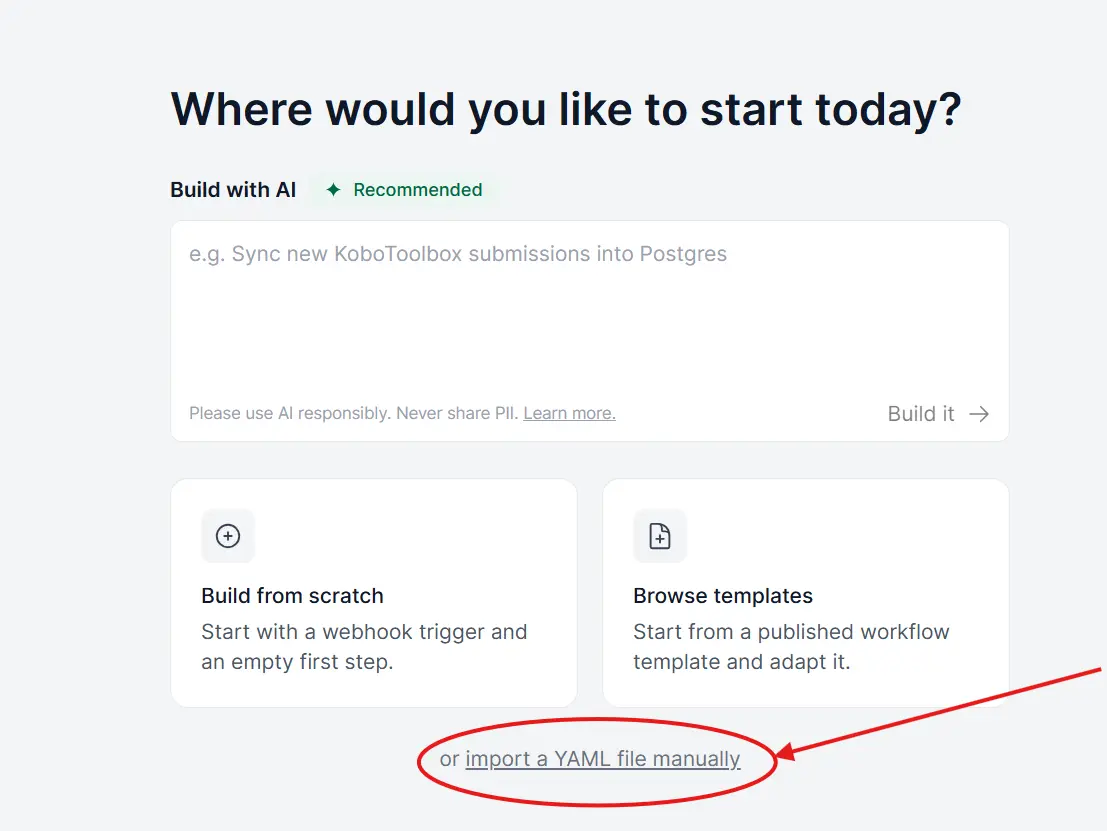
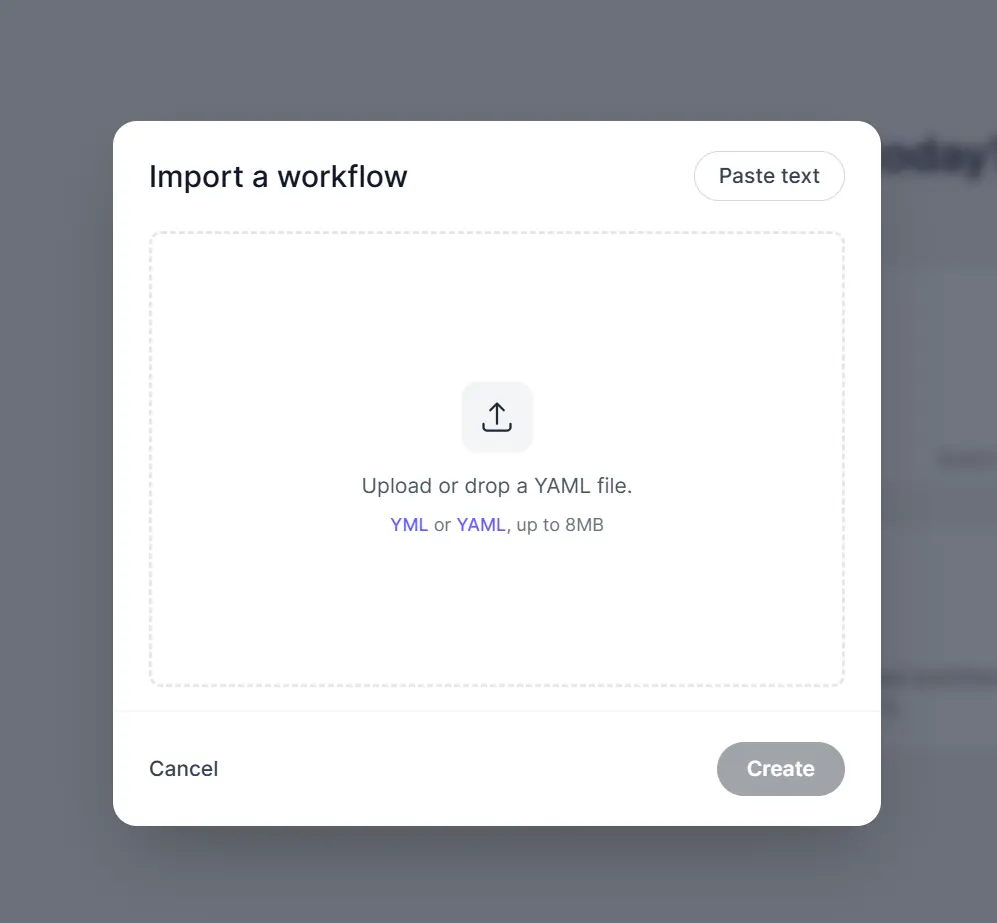
- Paste your YAML or import the YAML file if you downloaded it.
Remember to check if the workflow is active after you import it.
Migrate Credentials
Credentials are not included in the YAML export. This is intentional, credentials are owned by individual users and scoped to projects.
After importing a workflow, each step that referenced a credential on the source will need to be reconfigured to restore them.
If you own a credential in the source project and wish to re-use the same in the target project, see this link for instructions.
If you need to create a new credential, go to your credentials page, then create your new credential and include your target project in the Projects access section.
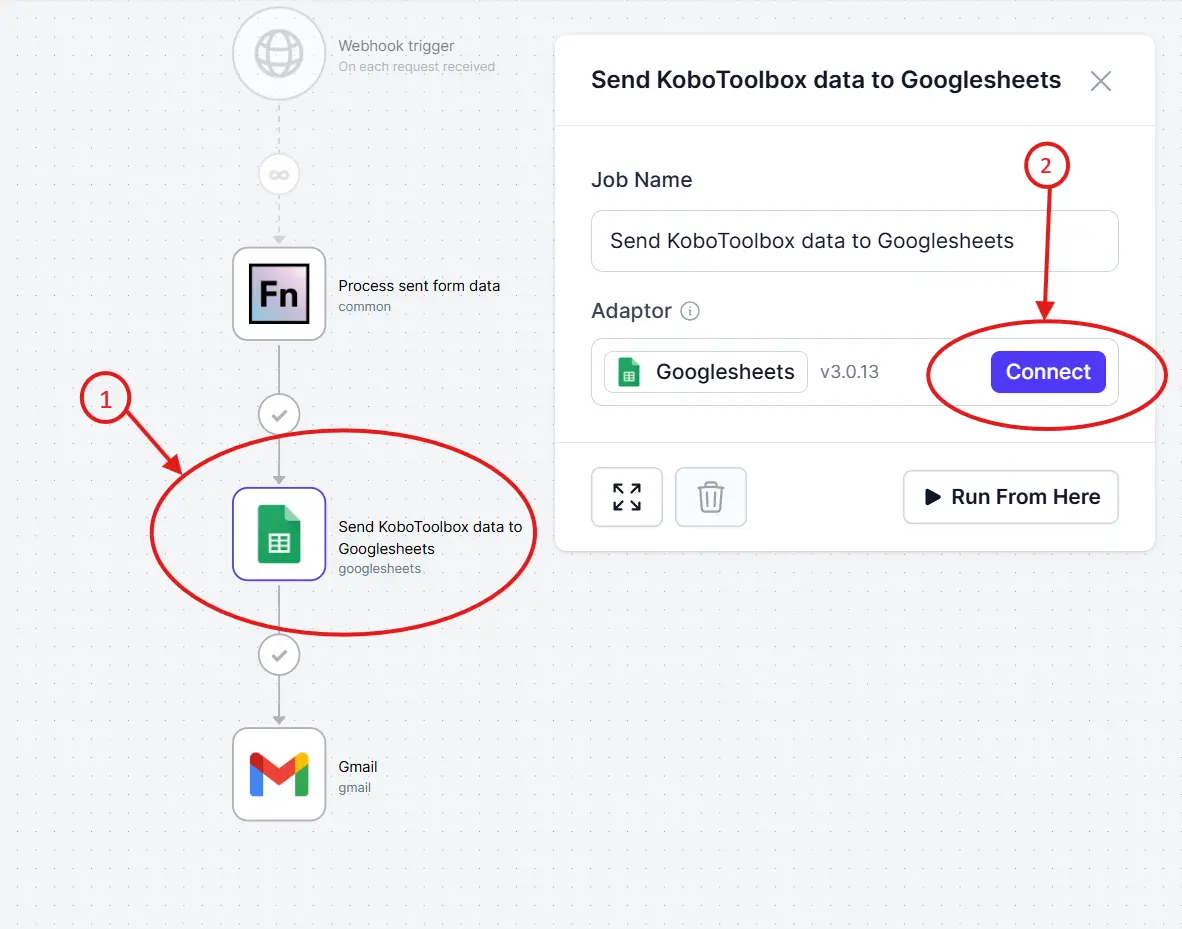
After creating a new credential, or giving an existing one access to your target project, you need to go and attach it to those steps that use it in your imported workflow. See screenshot below.
To attach your credential:
- Click on the target step.
- On the modal that appears, click on the
Connectbutton and select your credential.
Common Pitfalls
- Credential type mismatch. A step expecting a Salesforce OAuth credential will likely fail if linked to a Raw JSON credential. Create the correct type on the target.
- Webhook consumers still pointing at the old URL. The source workflow will keep receiving requests until you update the calling system.